Note
You can download this article as a PDF
AutoSplit Plugin
EnterpriseBacula Enterprise Only
This solution is only available for Bacula Enterprise. For subscription inquiries, please reach out to sales@baculasystems.com.
To use the AutoSplit Plugin, install the bacula-enterprise-autosplit-plugin package.
The following chapter aims at explaining how to use the AutoSplit FileDaemon Plugin with Bacula Enterprise. The AutoSplit Plugin can be used to automatically manage file servers with a large number of directories. When used together with the Scan Plugin, Bacula will create Job and Fileset pairs for each subdirectory within a specified top-level directory. This allows Bacula to run multiple concurrent jobs and speed up the backup of a large file server.
/home/
/home/johndoe
/home/johnsmith
/home/homers
/home/marges
/home/barts
/home/clarkk
In the example above, if the AutoSplit Plugin is configured with root=/home,
the Scan Plugin will generate six Jobs and six Filesets corresponding to the six
subdirectories.
Some directories are automatically excluded, such as:
/proc
/sys
lost+found
The AutoSplit Plugin does not handle files located in the specified top-level directory
defined by the root= parameter. It creates Job and Fileset pairs only for directories.
If there are files in the specified directory, you must manually create a specific Job/Fileset pair to back these files up:
Fileset {
             Name = F_fileset1
             Include {
                     Options {
                             Compress = ZSTD
                             Signature = SHA256
                             recurse = no          # Will not save directories, and will not recurse
                     }
                     File = /home                   # root directory
             }
     }
To use the AutoSplit Plugin with the BWeb Automation Center:
Click on the Automation Center link in the left navigation bar.
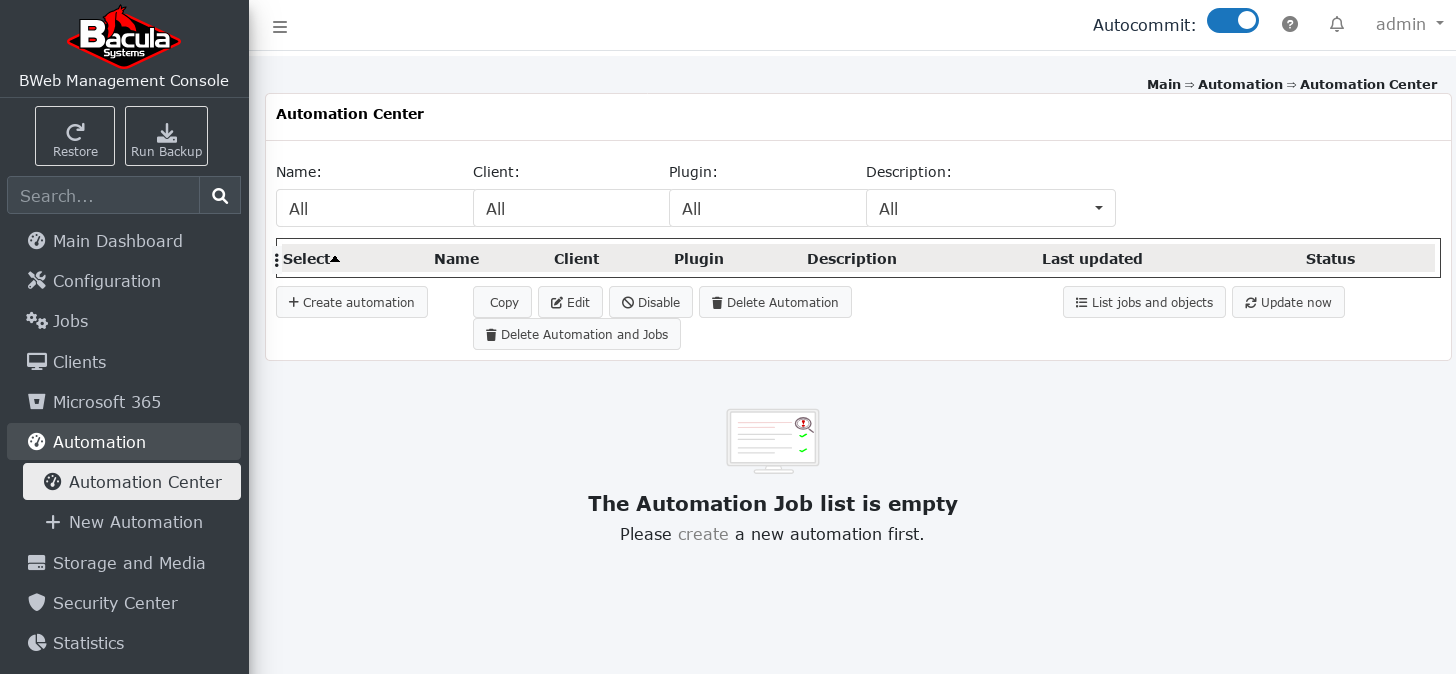
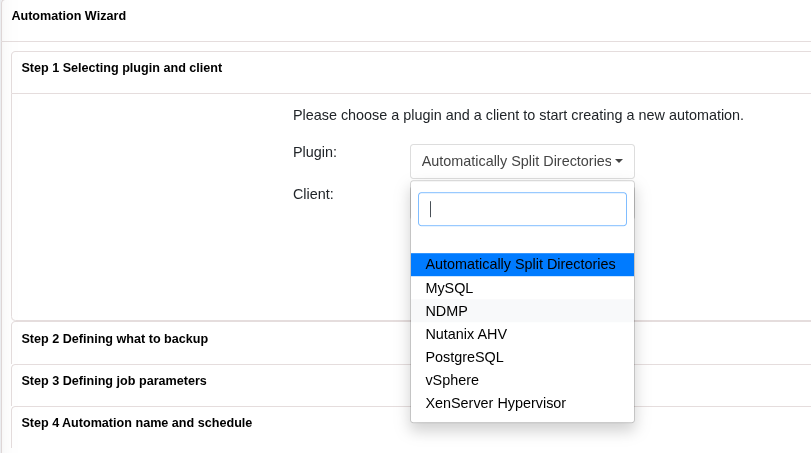
Create a new automation, select your client and choose the “Automatically Split Directory” plugin.
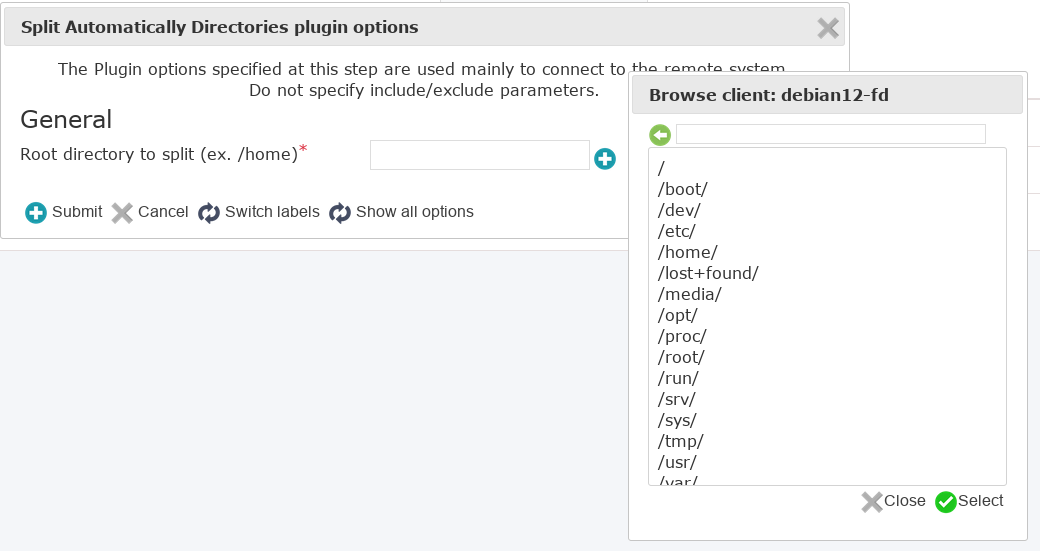
3. Configure options for this plugin and assign the top-level root directory. You can either type the path manually or browse to find the directory. If the directory tree is large, typing the path directly may be easier than navigating through an extensive directory structure.
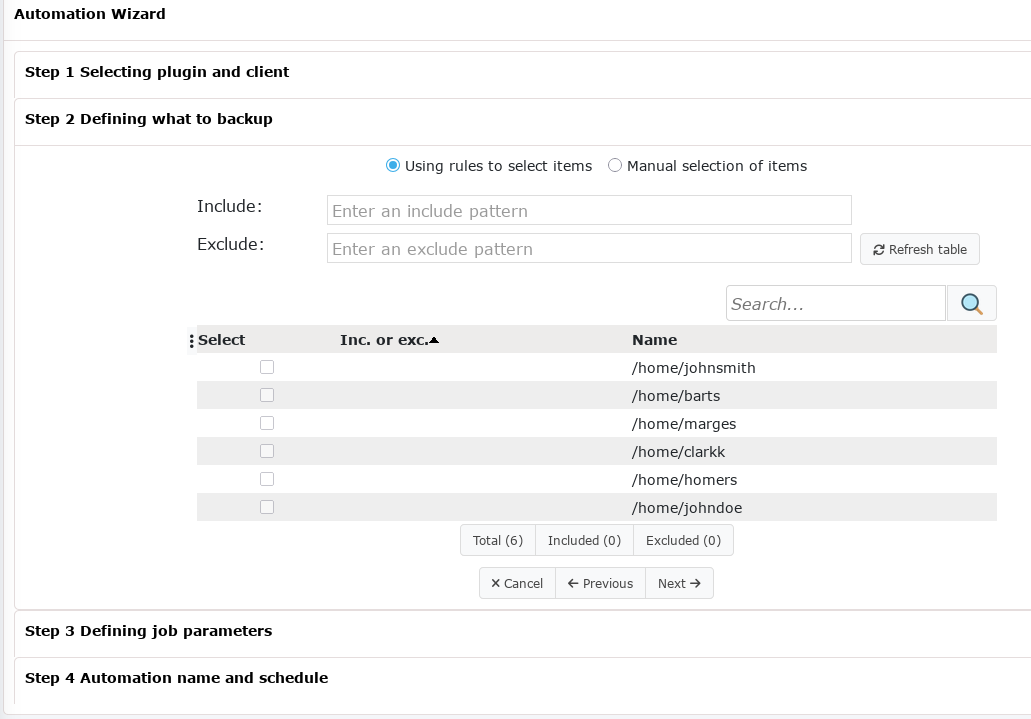
A table displays the list of detected subdirectories. Review the list, then click Next to create the resources.
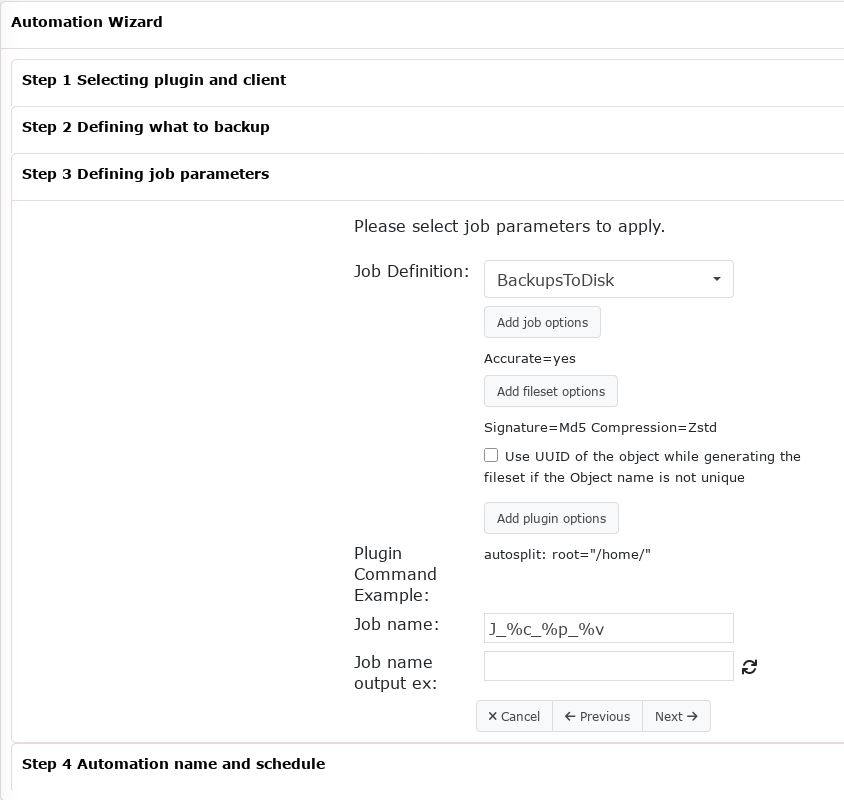
Select a JobDefs resource, configure the Job options (Accurate mode, Storage, Pool, etc.), set the Fileset options (compression, signature), and choose a template name.
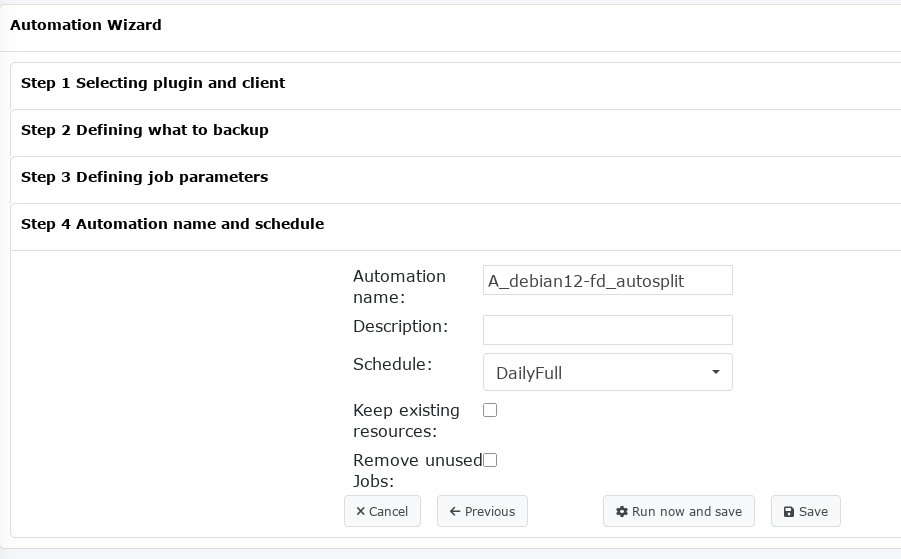
Create the automation admin job. This job automatically updates the Job and Fileset pairs whenever directories are created or deleted.
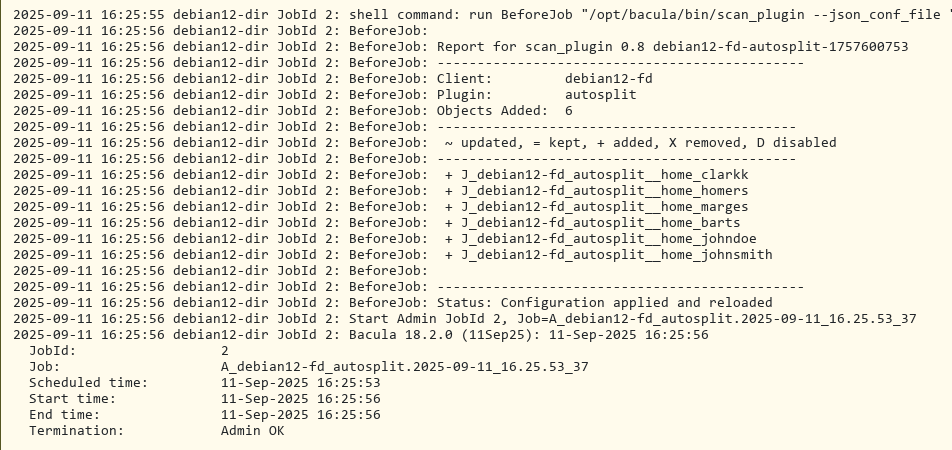
Run the automation job. The list of created Job resources should correspond to the subdirectories present in the top-level directory defined by the
root=parameter.
See also
Previous articles:
Go back to: NAS and HPC.