Platform-Specific Recovery Steps
EnterpriseBacula Enterprise Only
This solution is only available for Bacula Enterprise. For subscription inquiries, please reach out to sales@baculasystems.com.
Restore and Boot Loader Configuration
Once restore of the data is complete, the BMR program invites you to look at the joblog of the restore job. Even if a successful restore would be good news, the log should be reviewed for warnings or other minor errors. The same screen in figure After Restore asks to choose between automatic and manual configuration of the boot loader.
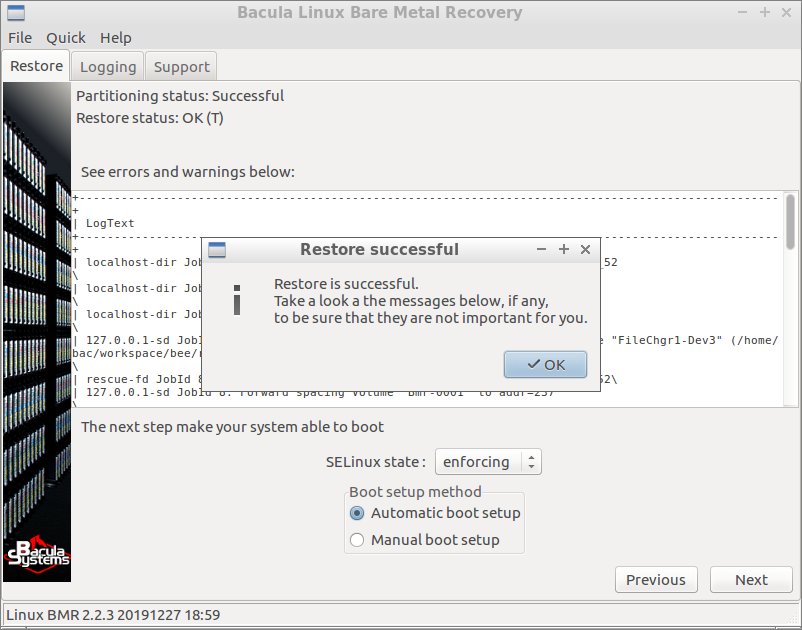
After Restore
The process is similar to the partitioning process seen before: The BMR program generates a shell script. If you choose “Manual boot setup” or if the auto-generated script has caused errors then the program enters the Boot Loader Manual Configuration screen presented in figure Boot Loader Manual Configuration.
You can change the SELinux mode using the combo box. This can be convenient if you have some problems at reboot time. Have a look at section Restoring a system with SELinux enabled.
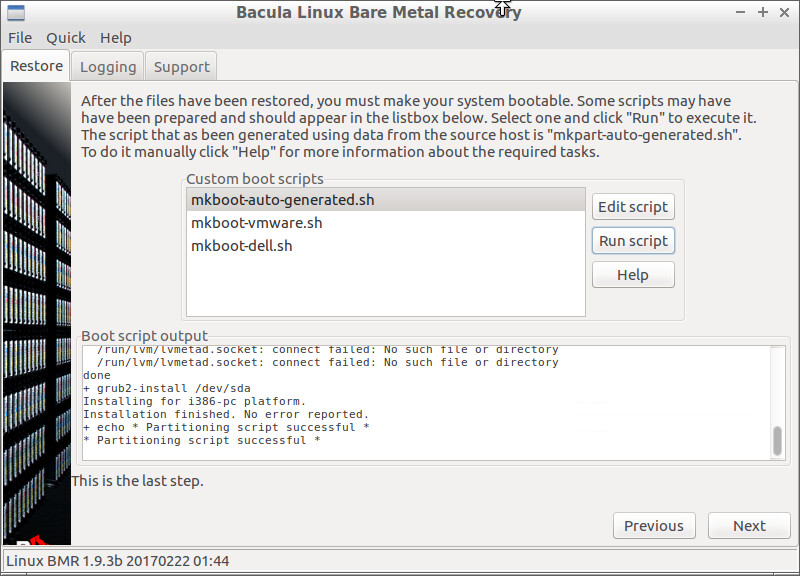
Boot Loader Manual Configuration
The script mkboot-auto-generated.sh in the list is the one that the
BMR program has generated. The two other scripts are here to remind
you that you can prepare your own scripts in advance and store them in
the /opt/bacula/rescue/scripts directory of the source host. These
custom scripts will be available in the list if their names start with
mkboot-. You can edit and run the scripts using the buttons on the
right. The output is displayed in the small window at the bottom. The
“Help” button provides a lot of information about what you have to do,
how you can do it, and all the details about the source system.
See also
Previous articles:
Next articles:
Go back to: Linux BMR: Performing BMR.