QEMU Example
EnterpriseBacula Enterprise Only
This solution is only available for Bacula Enterprise. For subscription inquiries, please reach out to sales@baculasystems.com.
Using Bweb Automation to Create an Admin Job
The QEMU Plugin supports Genuine QEMU and Proxmox VE (PVE) modes. This example uses PVE mode to discover VMs on a Proxmox host and create or update their backup Jobs and Filesets through a scheduled Bweb Automation Job.
Click Create automation in the Automation Center or New Automation in the left menu.
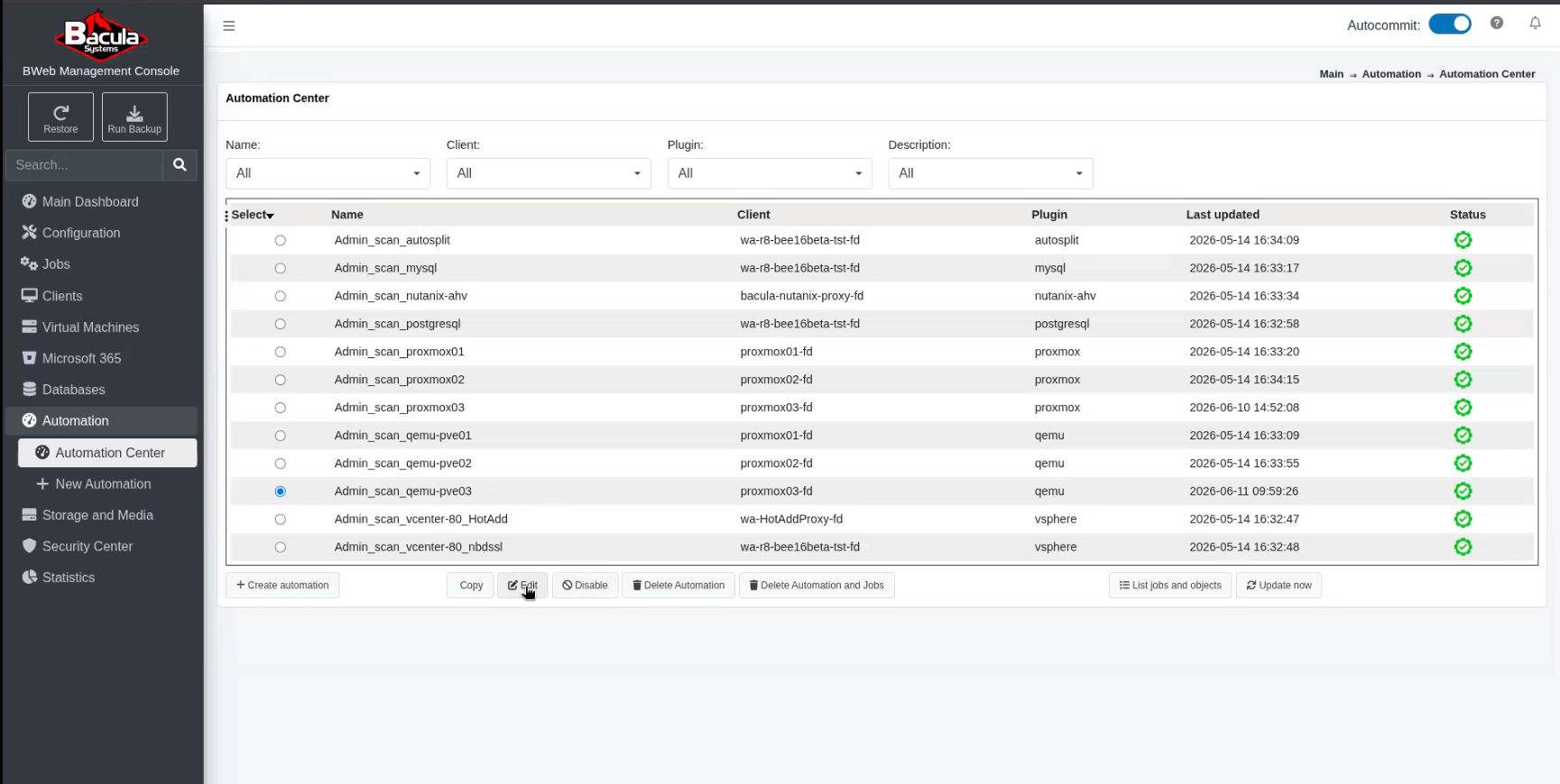
Select Qemu and the Client installed on the Proxmox host. This example uses
proxmox03-fd. Use Add Connection Plugin Options to configuremode=PVE.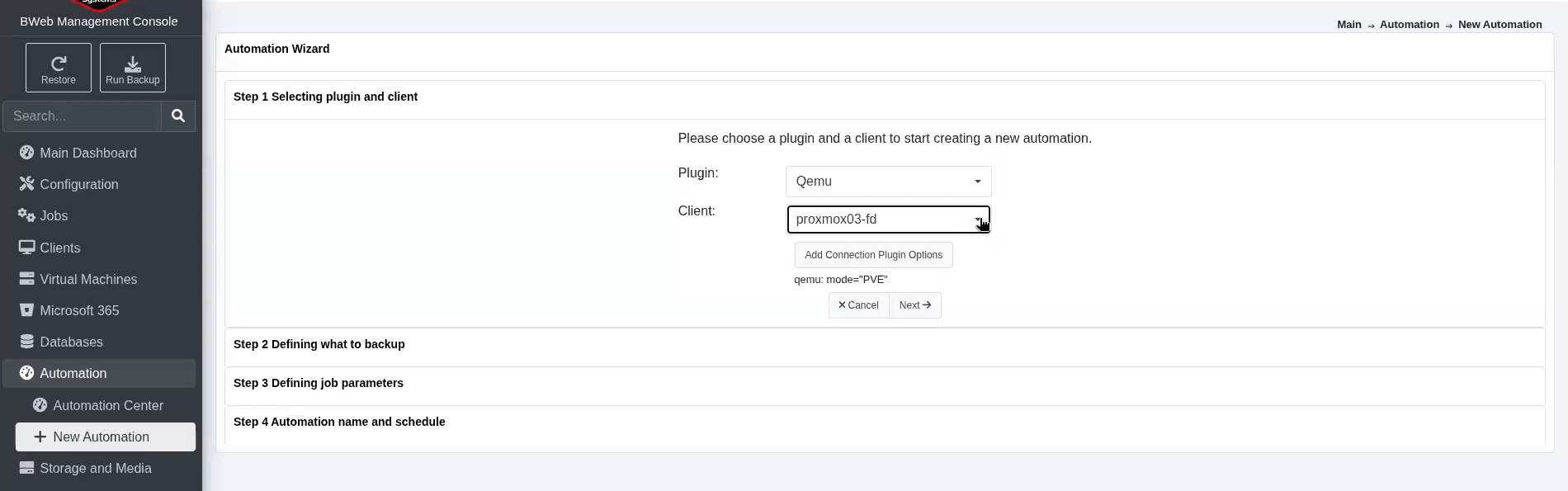
Check that the plugin command shows
qemu: mode="PVE", then click Next.In Step 2 Defining what to backup, use inclusion or exclusion rules, or enable manual selection. This example includes VM names ending in
-bckusing.*-[Bb][Cc][Kk]$. Click Refresh table to review the matching VMs, then click Next.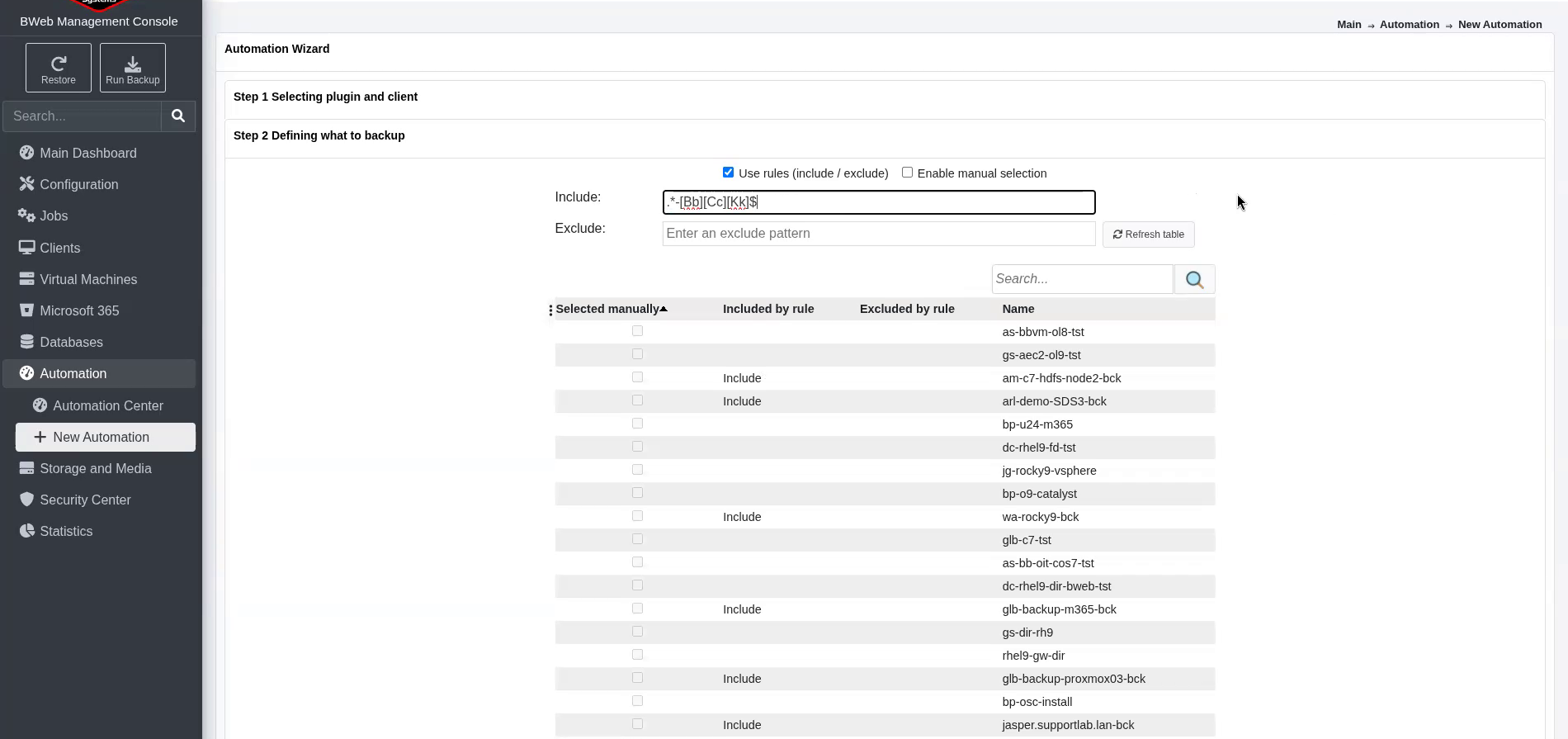
In Step 3 Defining job parameters, select a Job Definition and configure the job, Fileset, and plugin options. This example uses
BackupsToDedup2and the job-name pattern%c_%p_%v. Click Next.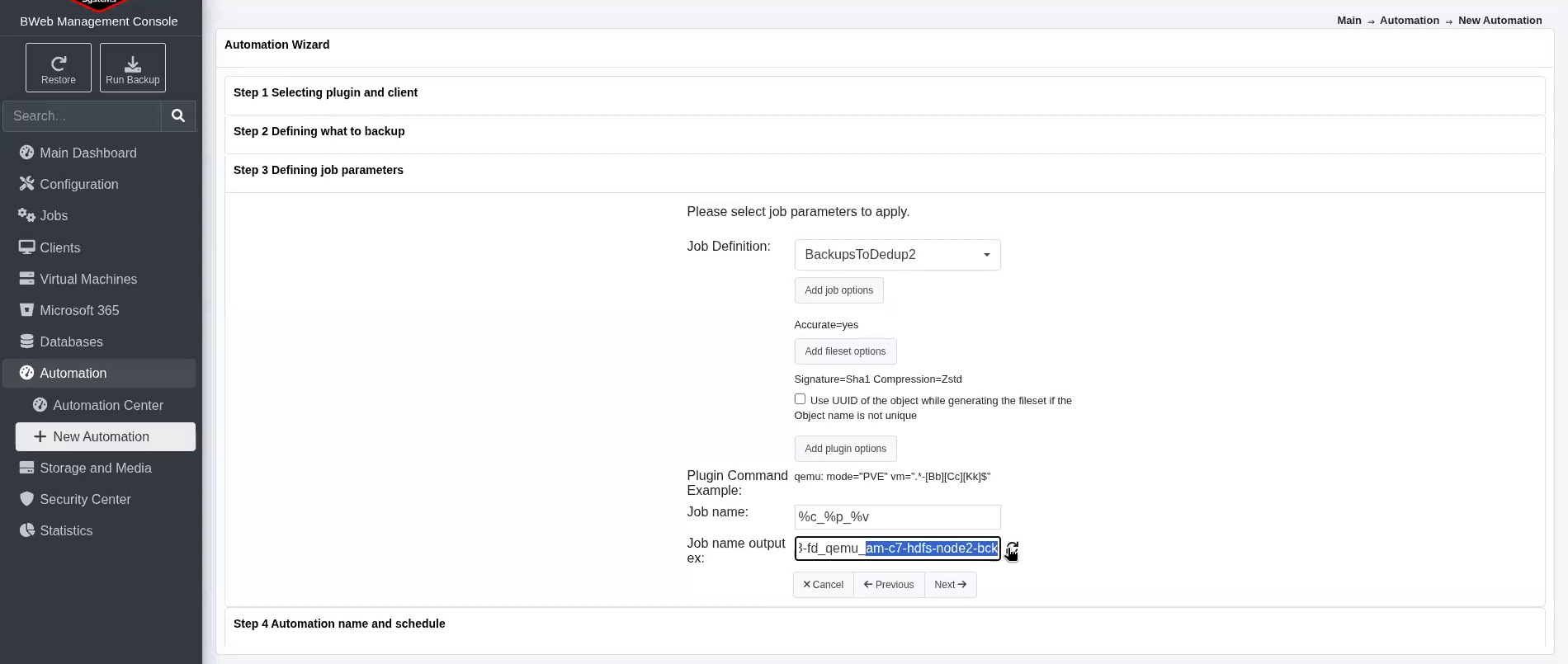
In Step 4 Automation name and schedule, enter the automation name, choose a schedule if required, and review the resource-management options.
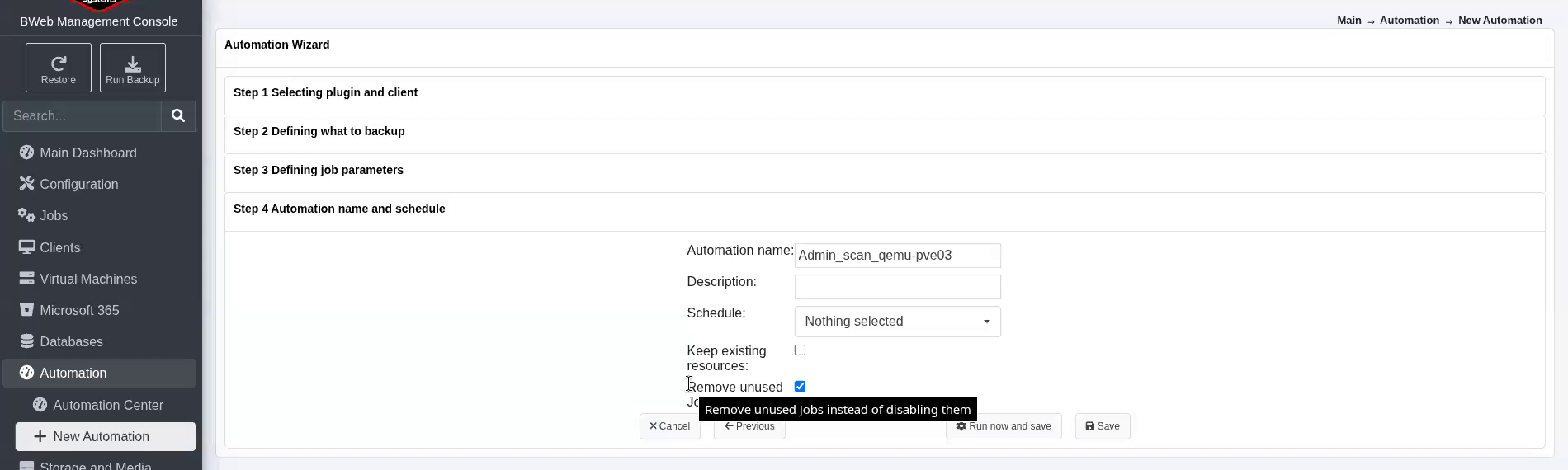
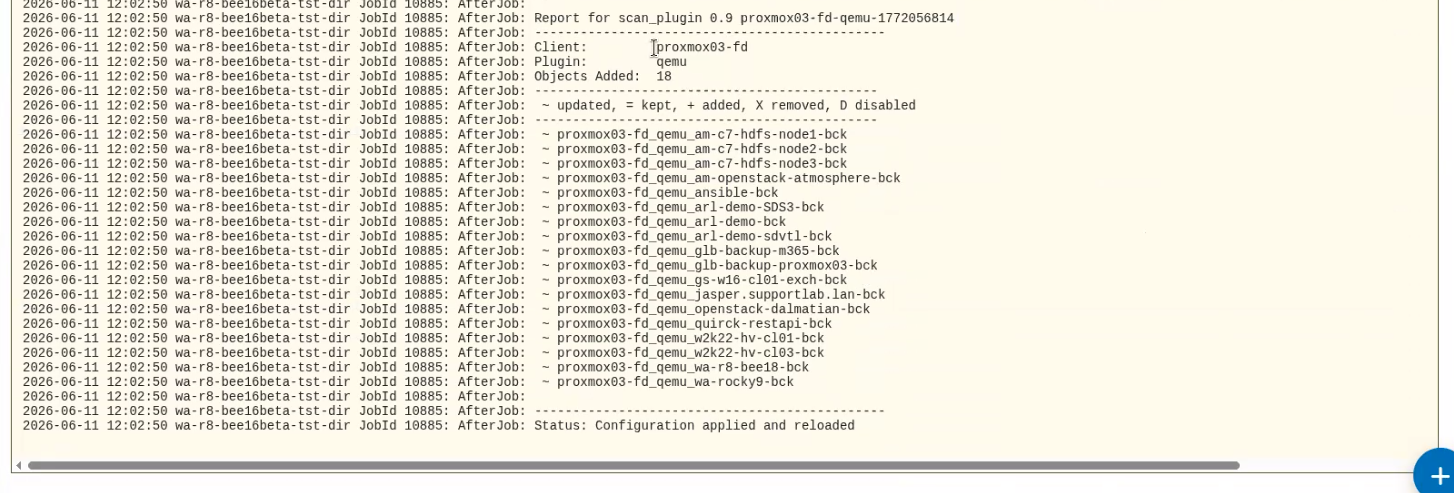
Click Run now and save. The automation runs and creates or updates backup resources for the selected VMs. Review the report for Configuration applied and reloaded.
See also
Previous articles:
Go back to: Examples.