Writing Concurrently to Multiple Devices
CommunityEnterpriseWe have seen that disk backup can use multiplexing with multiple concurrent jobs without problems. Now we will discuss how to configure Bacula to spread the work load over multiple devices automatically.
While it is possible to define multiple Devices in the Storage daemon, and multiple Storage resources in the Director that use those devices, it can be very complicated to decide what Job to put on what storage device. In the extreme case, where you want every Job to have its own set of Volumes to cleanly separate the data, and you run 2000 Jobs a night, say 50 at a time, you will need 50 separate Storage definitions in the Director and 50 separate Device definitions in the Storage daemon, further more, each of your Jobs will have to reference one of the 50 devices that it can write to. The next section explains how to do this.
Now suppose you want to use multiple Pools, which means multiple Volumes, or suppose you want each client to have its own Volume and perhaps its own directory such as /mnt/bacula/client1 and /mnt/bacula/client2 … With the single Storage and Device definition above, neither of these two is possible. Why? Because Bacula disk storage follows the same rules as tape devices. Only one Volume can be mounted on any Device at any time. If you want to simultaneously write multiple Volumes, you will need multiple Device resources in one or more Autochangers in your bacula-sd.conf file, and thus multiple Storage resources in your bacula-dir.conf.
Grouping Storage Devices
A simple way to define multiple devices is to use Bacula’s Virtual Autochanger definitions. To do so, you define a single Autochanger in the Director that connects to a single Autochanger in the Storage daemon, which has 50 devices connected to it. This means that all your Jobs use a single Storage definition. Then by the use of the Maximum Concurrent Jobs directive in each Device definition and by using Pools, you can ensure that one or a given number of Jobs write to each of the Devices you have defined. In general, you can group Jobs by using Pools. This is shown in the example below.
In the bacula-dir.conf file, you can define an Autochanger as follows:
# Definition of file Virtual Autochanger device
Autochanger {
  Name = File1
# Do not use "localhost" here
  Address = bacula-sd                 # N.B. Use a fully qualified name here
  SDPort = 9103
  Password = "a+YXY3kfS9ObgZ52ebJT3W"
  Device = FileChgr1
  Media Type = File1
  Maximum Concurrent Jobs = 10        # run up to 10 jobs a the same time
  Autochanger = File1                 # point to ourself
}
The only thing in particular to note is that the Autochanger resource contains an Autochanger directive that points to itself. This will be explained later.
In the bacula-sd.conf file, the equivalent definitions are:
#
# Define a Virtual autochanger
#
Autochanger {
  Name = FileChgr1
  Device = FileChgr1-Dev1, FileChgr1-Dev2
  Changer Command = /dev/null
  Changer Device = /dev/null
}

Device {
  Name = FileChgr1-Dev1
  Media Type = File1
  Archive Device = /tmp
  LabelMedia = yes          # lets Bacula label unlabeled media
  Random Access = Yes
  AutomaticMount = yes      # when device opened, read it
  RemovableMedia = no
  AlwaysOpen = no
  Maximum Concurrent Jobs = 5
}

Device {
  Name = FileChgr1-Dev2
  Media Type = File1
  Archive Device = /tmp
  LabelMedia = yes          # lets Bacula label unlabeled media
  Random Access = Yes
  AutomaticMount = yes      # when device opened, read it
  RemovableMedia = no
  AlwaysOpen = no
  Maximum Concurrent Jobs = 5
}
Notice that the Changer Command is empty and the Changer Device points to /dev/null. This is because the autochanger is virtual, and Bacula knows from each of the Device definitions where the Volumes are located (in the Archive Device directive).
Each Device should point to the same directory, have the same MediaType. If two Devices point to different directories, they should have different MediaType.
Setting Maximum Concurrent Jobs will limit the number of jobs that will be able to use each Device at the same time (5 in the above example). When the first Device is running the maximum concurrent jobs defined, Bacula will automatically have the next Job use the next available Device.
Writing to Multiple Disks
In addition to writing multiple Jobs simultaneously to the same Volume, and writing to multiple Volumes a the same time as show above, Bacula can, of course, simultaneously write to multiple Volumes on different Disks or partitions. There are two ways to write to separate disks or partitions. Probably the simplest is to simply create a second Autochanger definition in the Director and the Storage daemon that points to a different disk partition. When creating a second Autochanger, it is very important to use a different Media Type. This will permit Bacula during restore to find a suitable device. If you do not use a separate Media Type, it is possible that one day Bacula will ask to mount a Volume in one Autochanger on the second Autochanger, which is probably something you never want to do.
A second way to write to a separate disk or partition is to simply define one or more of the Devices in the Autochanger definition of the Storage daemon to point to a different mount point on another disk or partition. As with the case of defining a second Autochanger, you will want to define a different Media Type so that restores will work correctly.
If we take the example configuration file given above and expand it to include writing to a second Autochanger, we might have something like the following:
In the bacula-dir.conf file, you can define two Autochangers as follows:
# Definition of file Virtual Autochanger device
Autochanger {
  Name = File1
# Do not use "localhost" here
  Address = bacula-sd                 # N.B. Use a fully qualified name here
  SDPort = 9103
  Password = "a+YXY3kfS9ObgZ52ebJT3W"
  Device = FileChgr1
  Media Type = File1
  Maximum Concurrent Jobs = 10        # run up to 10 jobs a the same time
  Autochanger = File1                 # point to ourself
}
# Definition of file Virtual Autochanger device
Autochanger {
  Name = File2
# Do not use "localhost" here
  Address = bacula-sd                 # N.B. Use a fully qualified name here
  SDPort = 9103
  Password = "a+YXY3kfS9ObgZ52ebJT3W"
  Device = FileChgr2
  Media Type = File2
  Maximum Concurrent Jobs = 10        # run up to 10 jobs a the same time
  Autochanger = File2                 # point to ourself
}
In the bacula-sd.conf file, the equivalent definitions are:
#
# Define a Virtual autochanger
#
Autochanger {
  Name = FileChgr1
  Device = FileChgr1-Dev1, FileChgr1-Dev2
  Changer Command = /dev/null
  Changer Device = /dev/null
}

Device {
  Name = FileChgr1-Dev1
  Media Type = File1
  Archive Device = /bacula
  LabelMedia = yes          # lets Bacula label unlabeled media
  Random Access = Yes
  AutomaticMount = yes      # when device opened, read it
  RemovableMedia = no
  AlwaysOpen = no
  Maximum Concurrent Jobs = 5
}

Device {
  Name = FileChgr1-Dev2
  Media Type = File1
  Archive Device = /bacula
  LabelMedia = yes          # lets Bacula label unlabeled media
  Random Access = Yes
  AutomaticMount = yes      # when device opened, read it
  RemovableMedia = no
  AlwaysOpen = no
  Maximum Concurrent Jobs = 5
}
#
# Define a Virtual autochanger
#
Autochanger {
  Name = FileChgr2
  Device = FileChgr2-Dev1, FileChgr2-Dev2
  Changer Command = /dev/null
  Changer Device = /dev/null
}

Device {
  Name = FileChgr2-Dev1
  Media Type = File2
  Archive Device = /bacula/data
  LabelMedia = yes          # lets Bacula label unlabeled media
  Random Access = Yes
  AutomaticMount = yes      # when device opened, read it
  RemovableMedia = no
  AlwaysOpen = no
  Maximum Concurrent Jobs = 5
}

Device {
  Name = FileChgr2-Dev2
  Media Type = File2
  Archive Device = /bacula/data
  LabelMedia = yes          # lets Bacula label unlabeled media
  Random Access = Yes
  AutomaticMount = yes      # when device opened, read it
  RemovableMedia = no
  AlwaysOpen = no
  Maximum Concurrent Jobs = 5
}
For each physical device on which you write Volumes (/tmp and /var/tmp in the above example), you will need sufficient disk space to hold all the data in your Volumes. If Bacula fills a disk partition completely, it will stop and ask you to mount a new Volume and you will be stuck unless you can recycle or delete some of your existing Volumes. This is because once Bacula chooses a drive to write on at the beginning of the Job, it cannot switch during that Job to writing on another drive. Thus currently, there is no way for you to create Volumes on another disk partition and have Bacula automatically switch when the disk fills.
OK, so now you should understand that you need different Device definitions in the case of different directories, but you also need to know that the catalog data that Bacula keeps contains only the Media Type and not the specific storage device. This permits a tape for example to be re-read on any compatible tape drive. The compatibility being determined by the Media Type. The same applies to disk storage. Since a volume that is written by a Device in say directory /mnt/bacula/backups cannot be read by a Device with an Archive Device definition of /mnt/bacula/client1, you will not be able to restore all your files if you give both those devices Media Type = *DiskStorage-mnt-bacula*. During the restore, **Bacula will simply choose the first available device, which may not be the correct one. If this is confusing, just remember that the Directory has only the Media Type and the Volume name. It does not know the Archive Device (or the full path) that is specified in the Storage daemon. Thus you must explicitly tie your Volumes to the correct Device by using the Media Type.
Using Pools
Another way to use multiple devices at the same time is to define different pools and distribute your jobs among them. Those Pools can have the same attributes (such as retention), their main purpose will be to let the Storage Daemon write concurrently to multiple devices. Depending on how many jobs you run at the same time (Max Concurrent Jobs). This is shown in Job Distribution using Pools.
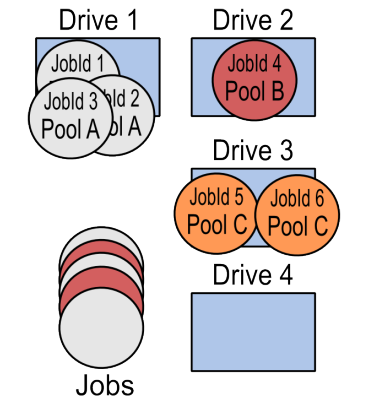
Job Distribution using Pools
By having a different Pool for each Job, you can also force Bacula to write all the data for each Job on separate Volumes. This technique can also be applied to groups within an organization. You may want the data for your Personnel department, R&D department, Sales, and Management all on separate Volumes. This is relatively easy to do by configuring each Client machine to use the appropriate Pool.
Dedicated Device per Client
If you want every Client to write to a separate Volume, probably the easiest way is to define a separate Pool for each Client. When the Job is run to backup that Client, Bacula will automatically ensure that no other Jobs use the same Device because the Pool will be different. This will effectively force each Device to run a single Job at a time. Consequently, in your bacula-sd.conf file, you will want to define one Device for each Job that will run simultaneously. However, since we are using a Virtual Autochanger, each Job in the bacula-dir.conf file can reference the same Autochanger. Bacula will automatically manage which Job uses which Drive.
See also
Previous articles:
Next articles:
Go back to: Backup Policy Configuration.