HyperV WinAPI: Installation
EnterpriseBacula Enterprise Only
This solution is only available for Bacula Enterprise. For subscription inquiries, please reach out to sales@baculasystems.com.
The Bacula File Daemon and the Hyper-V WinAPI Plugin need to be installed on the Hyper-V host server. The Hyper-V WinAPI Plugin Windows installer is the same as the Hyper-V WMI Plugin installer.
You can choose to install one or the other from the Plugin tree.
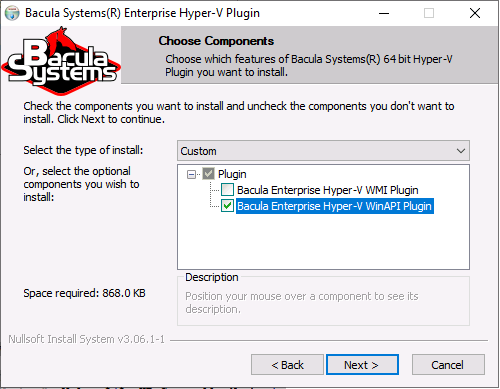
It will deploy required components within the Bacula File Daemon plugins directory.
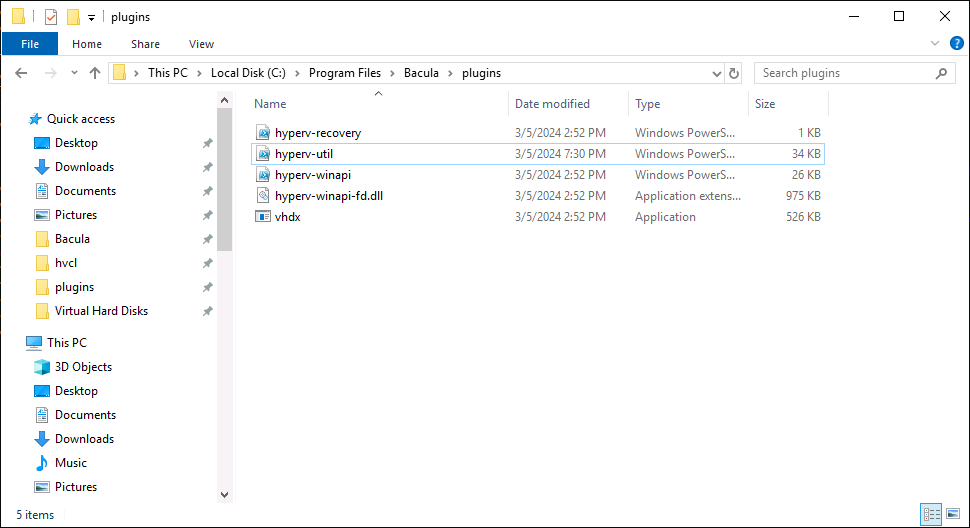
To configure the Bacula File Daemon, refer to the general Bacula installation documentation.
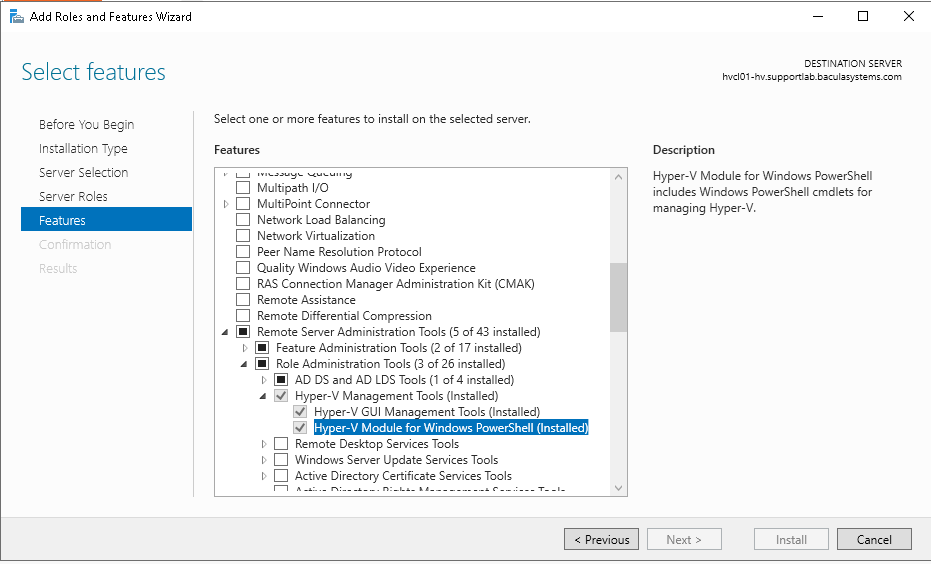
On the server side, the Hyper-V PowerShell Module needs to be enabled. On Windows Server or Hyper-V server 2012, 2016 and 2019, use Server Manager to install it. It should be located under Remote Server Administration Tools -> Role Administration Tools -> Hyper-V Management Tools and check Hyper-V Module for Windows PowerShell.
Verify the correct installation of the FD and the Hyper-V Plugin by running status client from bconsole or from BWeb.
*status client=w2019-hv01-fd
Connecting to Client w2019-hv01-fd at 172.22.22.50:9102
w2019-hv01-fd Version: 16.8.0 (06 April 2021) VSS Linux Cross-compile Win64
Daemon started 19-Jun-21 16:31. Jobs: run=23 running=2.
Microsoft Windows 2012 Standard Edition (build 9200), 64-bit
Priv 0x73f
Memory: WorkingSetSize: 34,168,832 QuotaPagedPoolUsage: 183,768 QuotaNonPagedPoolUsage: 17,368 PagefileUsage:
43,687,936
APIs=OPT,ATP,LPV,CFA,CFW,
WUL,WMKD,GFAA,GFAW,GFAEA,GFAEW,SFAA,SFAW,BR,BW,SPSP,
WC2MB,MB2WC,FFFA,FFFW,FNFA,FNFW,SCDA,SCDW,
GCDA,GCDW,GVPNW,GVNFVMPW,LZO,EFS
Heap: heap=34,168,832 smbytes=39,489,074 max_bytes=69,259,353 bufs=395 max_bufs=396
Sizes: boffset_t=8 size_t=8 debug=10 trace=1 mode=0,2010 bwlimit=0kB/s
Crypto: fips=no crypto=OpenSSL
APIs: !GPFS
Plugin: alldrives-fd.dll(1.2) hyperv-winapi-fd.dll(0.1) winbmr-fd.dll(3.1.0)
Verify that hyperv-winapi-fd.dll is in the “Plugin” line (last line in the above example output).
Read more:
See also
Previous articles:
Next articles:
Go back to: Hyper-V WinAPI Plugin.