Configure Copy Job
EnterpriseBacula Enterprise Only
This solution is only available for Bacula Enterprise. For subscription inquiries, please reach out to sales@baculasystems.com.
The following article aims at providing a comprehensive guide for configuring a Copy Job, including setting up pools, defining job parameters, and selecting source and destination storage options.
Important
Make sure to register your Download Area ID in BWeb.
In the left menu, navigate to Pools.
Click on Add.

Choose a Pool Name.
Use Add Job.
Select the Copy tile.
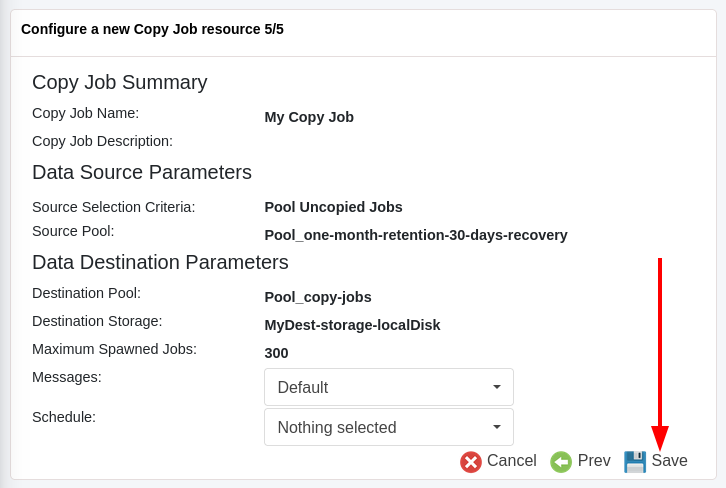
Insert a Job Name.
From the Selection Criteria drop-down menu, select Pool Uncopied Jobs.
From the Source Pool drop-down menu, choose the pool previously defined.
As Destination Pool, choose the newly created pool. From the Destination Storage drop-down menu, choose the storage to associate to all the volumes of the pool.
Click on Save.
Note
If Autocommit is not toggled, you may need to Commit your changes.
See also
Previous articles:
Go back to: Bacula Enterprise Guide to Basic Operations.