Microsoft Entra ID Configuration
EnterpriseBacula Enterprise Only
This solution is only available for Bacula Enterprise. For subscription inquiries, please reach out to sales@baculasystems.com.
Microsoft Entra ID (formerly Azure Active Directory) is Microsoft’s cloud identity and access service for workforce and application authentication. It provides centralized identity governance, Single Sign-On (SSO), and conditional access, and it supports OpenID Connect and OAuth 2.0 for modern web applications such as BWeb.
The following steps configure Microsoft Entra ID as an OIDC identity provider for BWeb.
Application
Create an application registration that represents BWeb.
Sign in to the Azure Portal: https://portal.azure.com/auth/login/
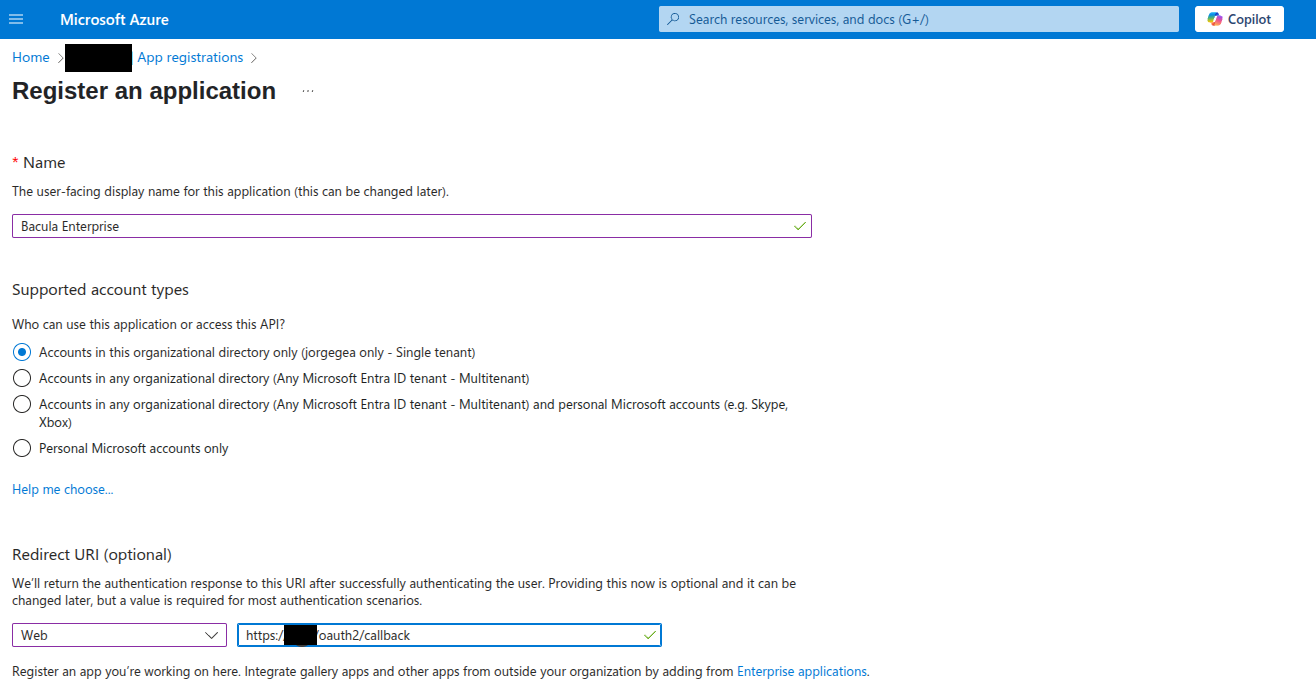
Navigate to Microsoft Entra ID > Manage > App registrations > New registration.
Enter a name such as
BWeborBacula Enterprise.Set the supported account type (typically “Accounts in this organizational directory only”).
Under Redirect URI, set Platform to Web and URI to
https://[bweb.ip.or.hostname]/oauth2/callback.
Use the exact public BWeb URL. Mismatched protocol, hostname, or path is one of the most common causes of failed sign-in loops.
Client Secret
Create a client secret for the application.
Open the application and navigate to Manage > Certificates & secrets.
Click New client secret.
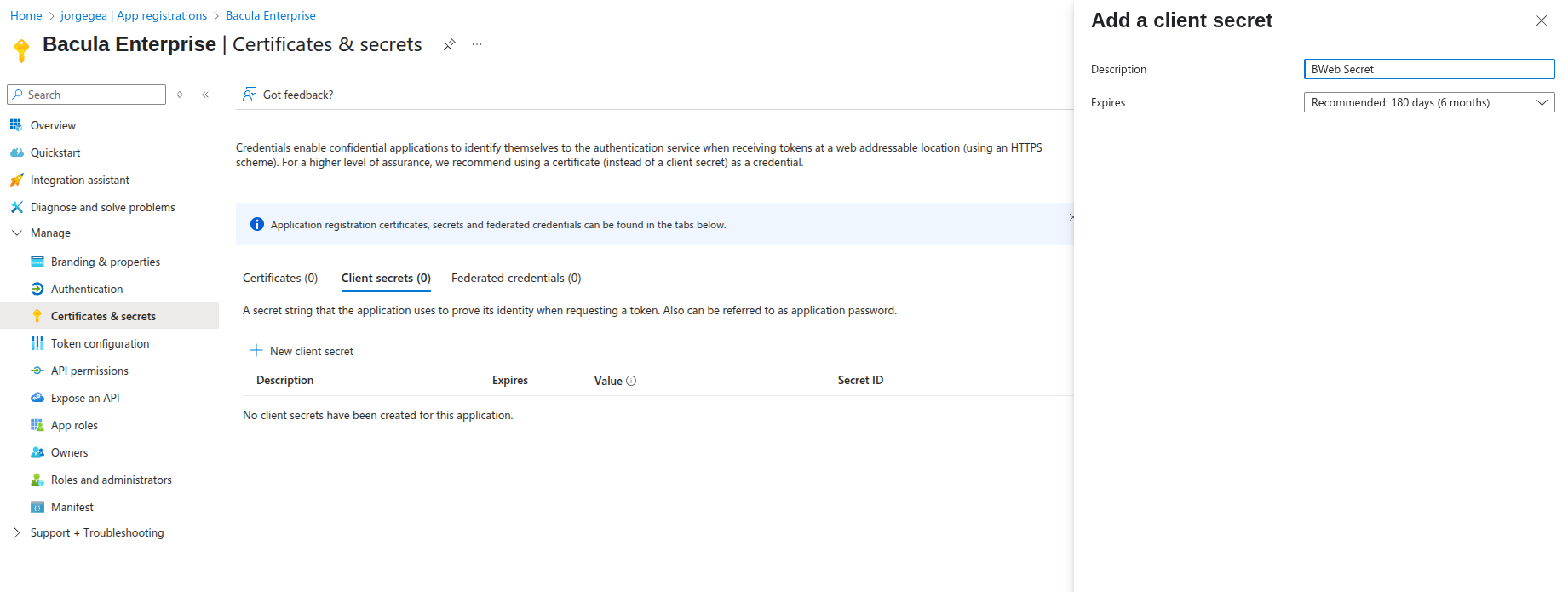
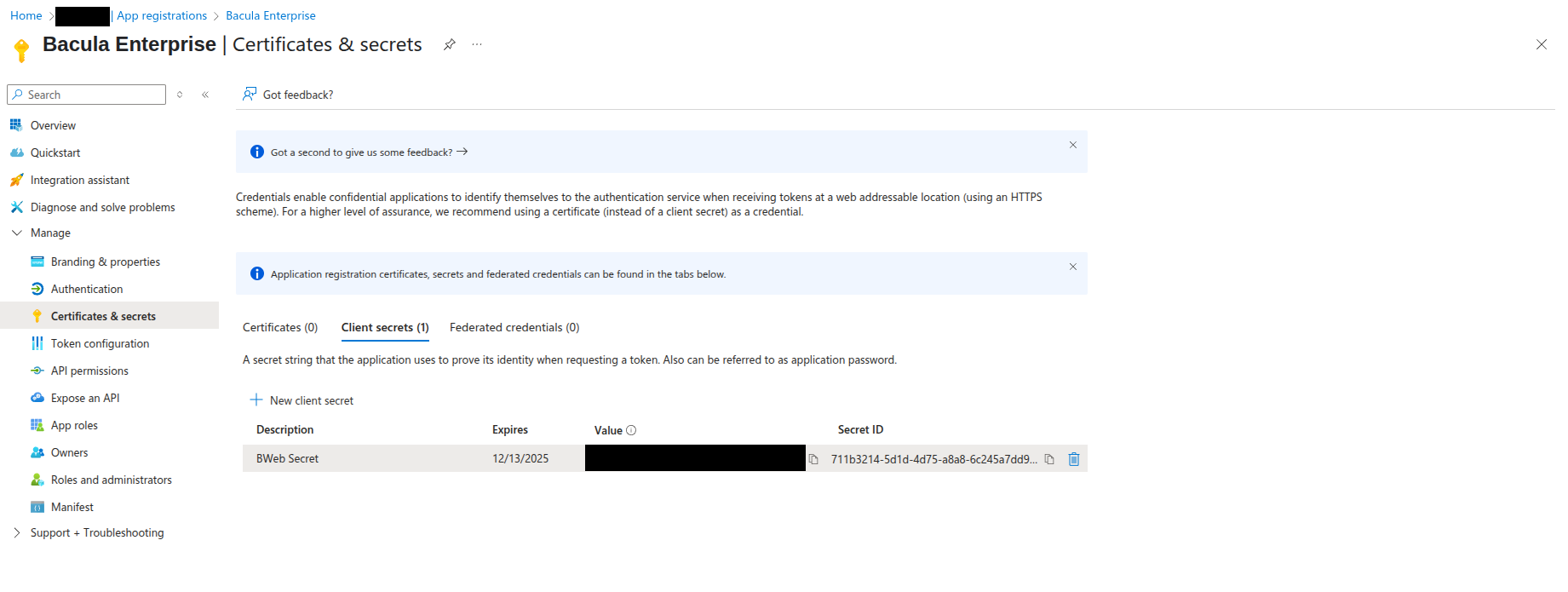
After creating the secret, copy its value and store it securely. It will be used as
client_secret during BWeb configuration.
Important: Microsoft Entra ID only shows the full secret value once, at creation time.
Token Claims
Add group information to the token so BWeb can map roles.
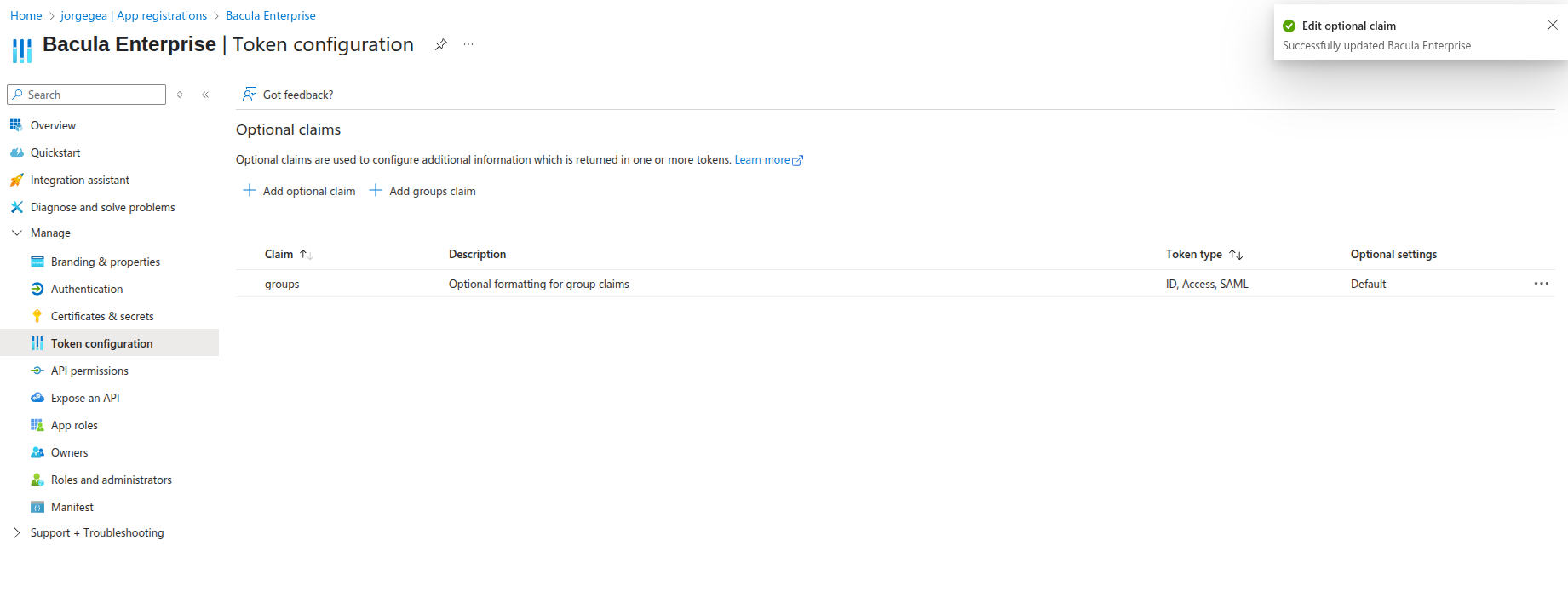
Go to Manage > Token configuration.
Click Add groups claim.
Select Directory roles (selecting Security is optional).
Save.
If your organization uses group-based access (recommended), include group claims so BWeb can map
Bacula Admins and bacula_* roles correctly.
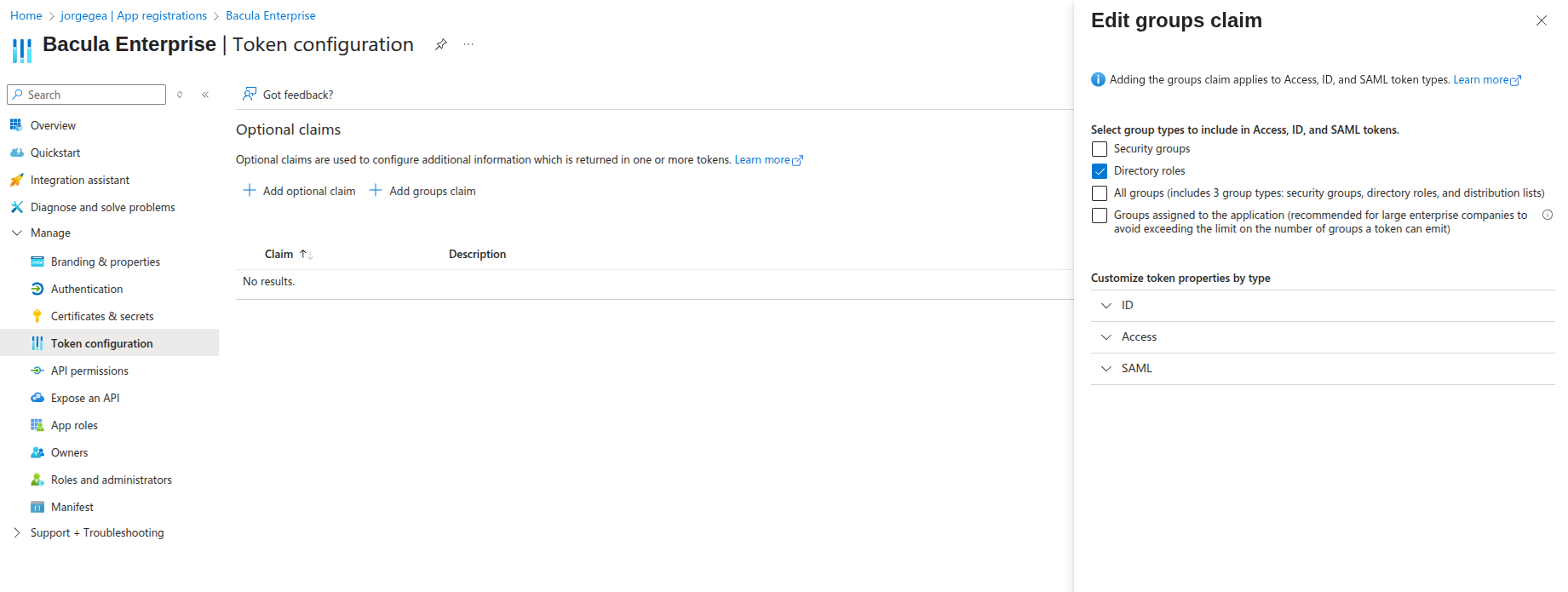
The claim should appear in the list:
Application Values
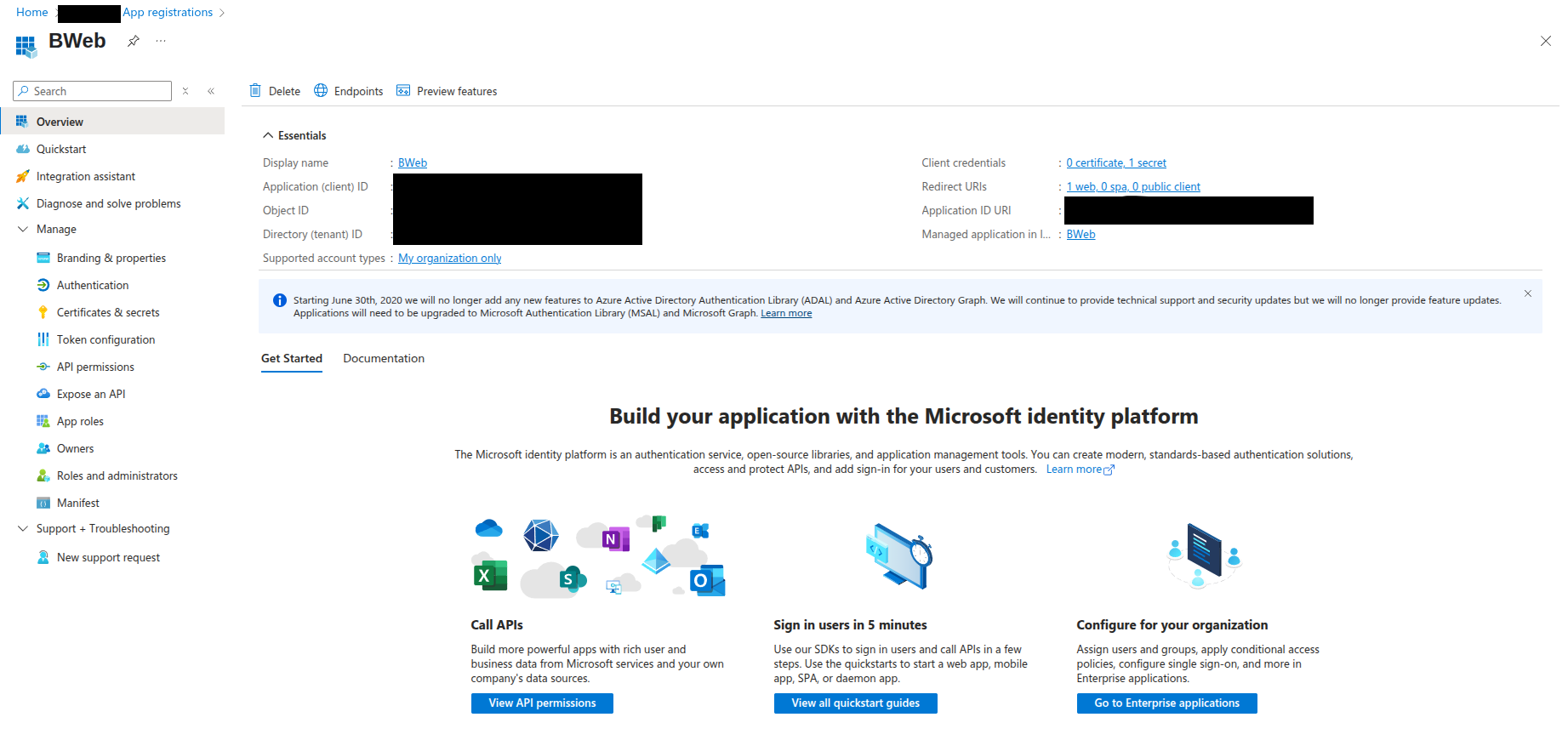
Open Manage > Overview and record the values needed to configure BWeb:
Application (client) ID ->
client_idDirectory (tenant) ID -> used to build
oidc_issuer_urlandoauth2_logout_url
Common URL formats for Entra ID:
oidc_issuer_url:https://login.microsoftonline.com/[tenant-id]/v2.0oauth2_logout_url:https://login.microsoftonline.com/[tenant-id]/oauth2/logout
Access Group
Associate the users who should access BWeb with the application.
Create a group under Microsoft Entra ID > Manage > Groups.
Add the target users to the group.
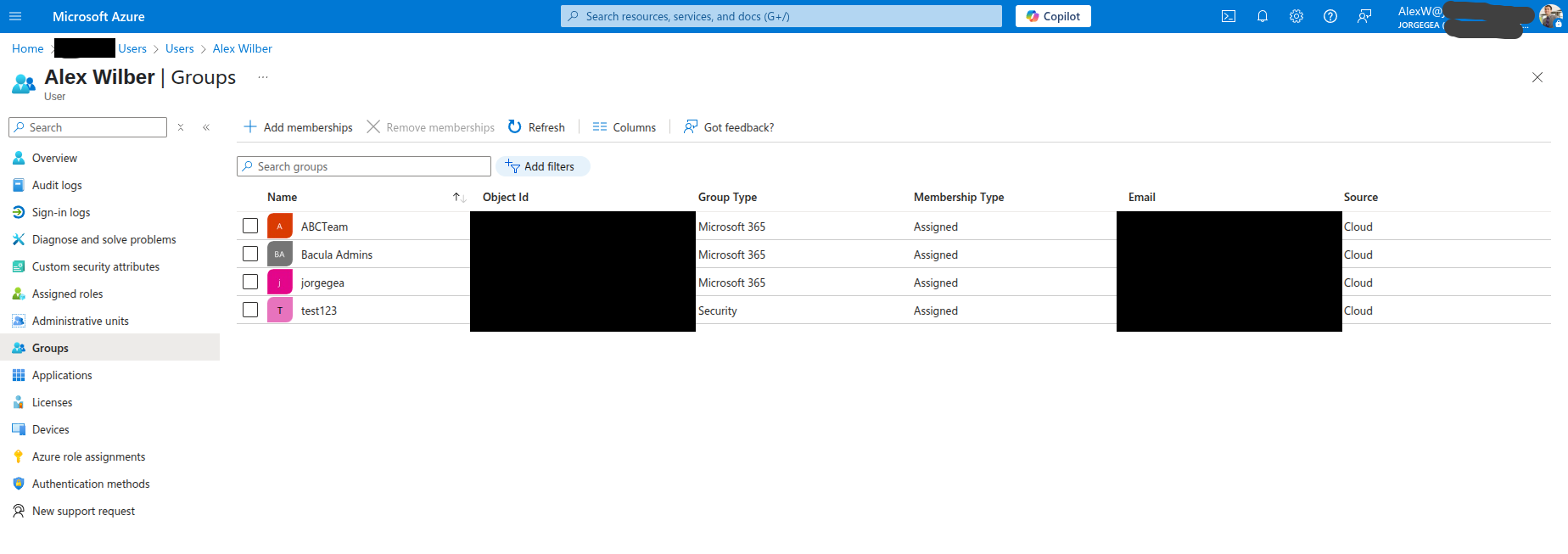
Depending on your Entra ID configuration, the token may contain group IDs rather than names. If so, you must create an ID-to-name mapping for BWeb. See BWeb Internal Group Matching.
Once the IdP configuration is complete, continue with Installation and Deployment.
See also
Previous articles:
Next articles:
Go back to: Authentication via OpenID Connect/OAuth 2.0 and Single Sign-On.