Okta Configuration
EnterpriseBacula Enterprise Only
This solution is only available for Bacula Enterprise. For subscription inquiries, please reach out to sales@baculasystems.com.
Okta is a cloud-based Identity and Access Management (IAM) platform that provides authentication, Single Sign-On (SSO), and policy-driven access control for enterprise applications. It supports OpenID Connect and OAuth 2.0 natively, making it suitable for BWeb delegated authentication.
The following steps configure Okta to act as an OIDC identity provider for BWeb.
Application
Create an application in Okta to represent BWeb.
Sign in to the Okta Admin Console: https://login.okta.com/
Create a new application and set Sign-in method to OIDC - OpenID Connect and Application type to Web Application.
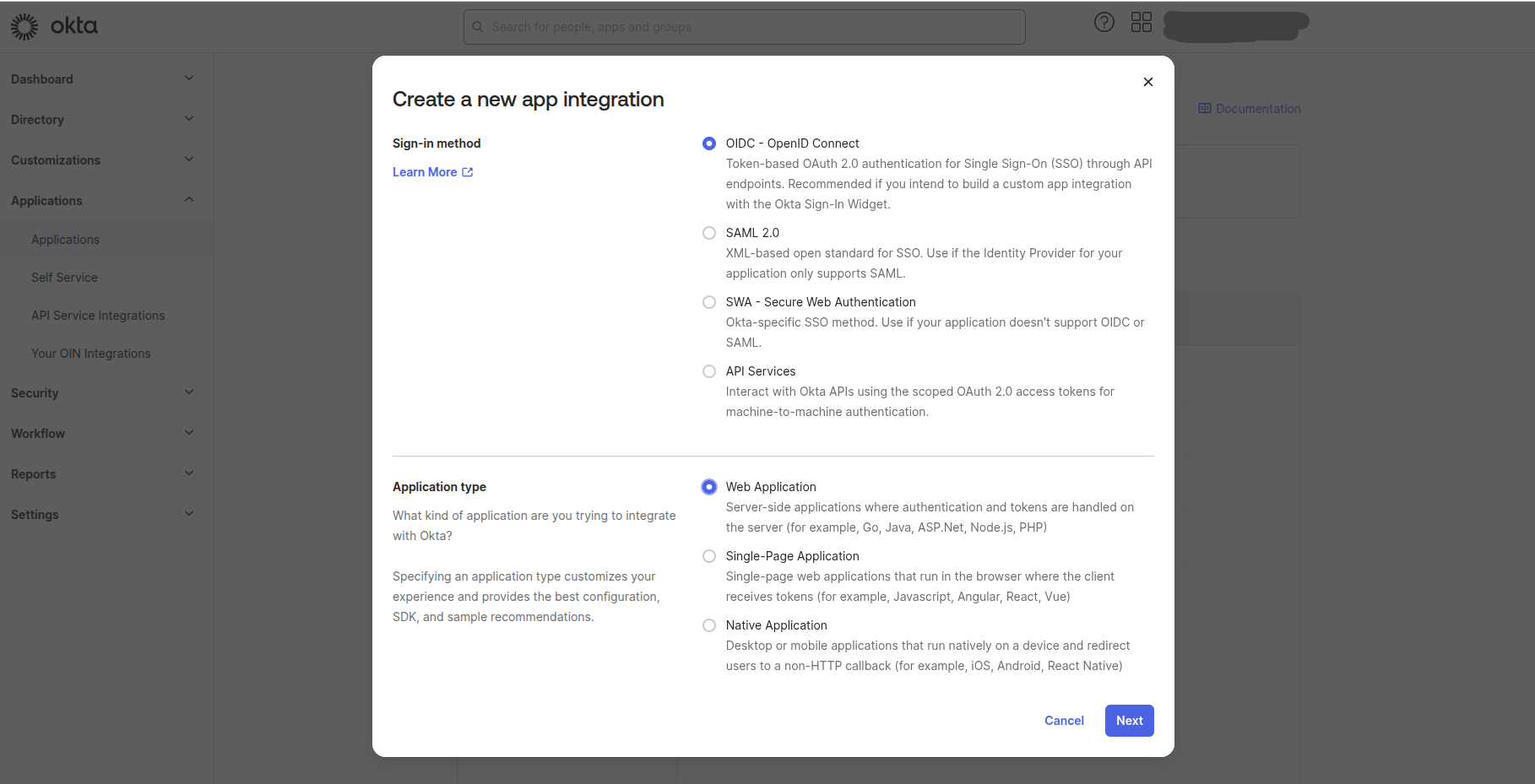
In the New App Integration form, set at least:
App integration name:
Bacula Enterprise(orBWeb)Grant type:
Authorization CodeSign-in redirect URIs:
https://[bweb.ip.or.hostname]/oauth2/callbackSign-out redirect URIs:
https://[bweb.ip.or.hostname]Login initiated by:
Either Okta or AppLogin flow:
Redirect to app to initiate login (OIDC Compliant)Initiate login URI:
https://[bweb.ip.or.hostname]
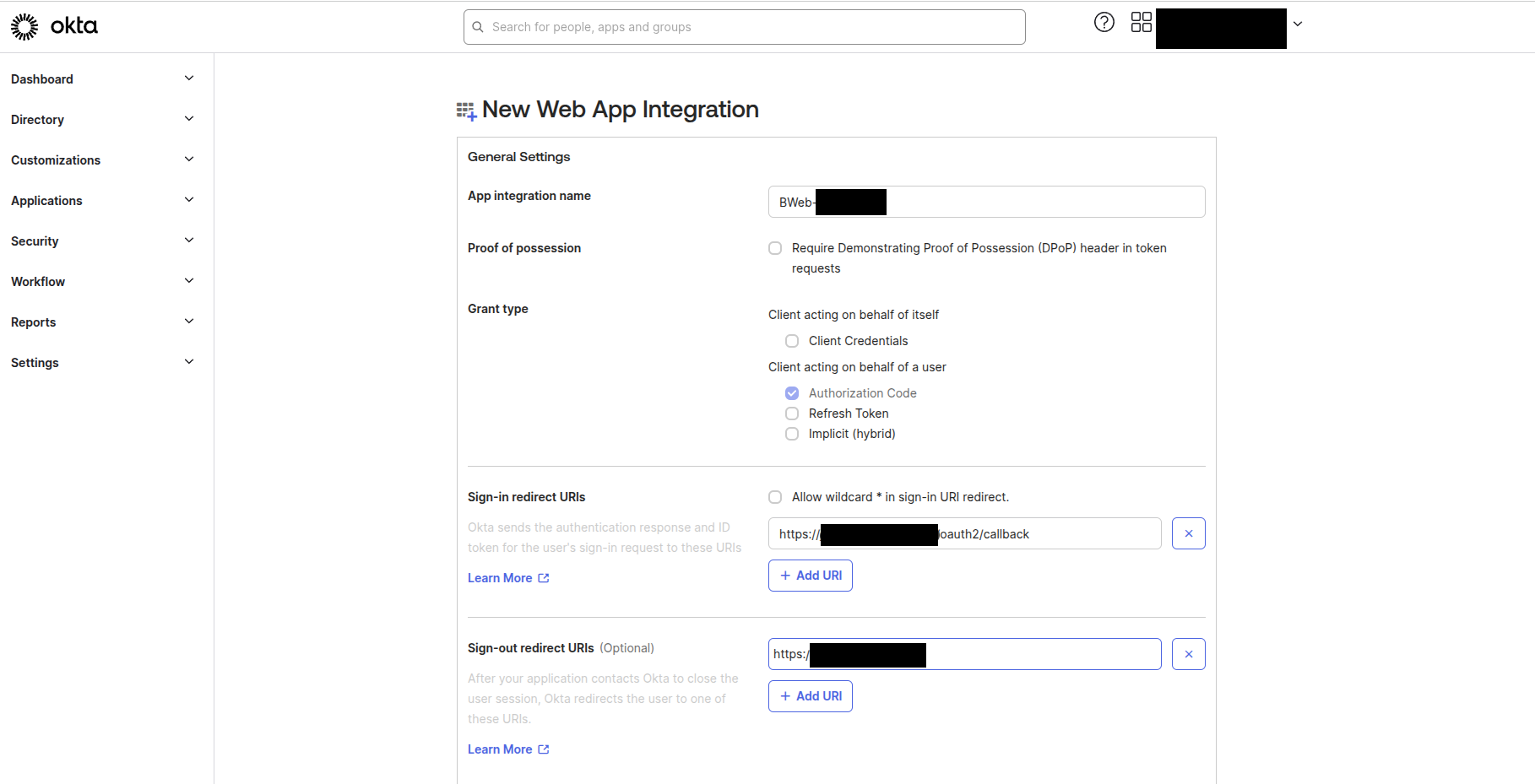
The value [bweb.ip.or.hostname] must be the hostname or IP address used by users to access
BWeb. At this stage, you can select “Skip group assignment for now”.
These URI values must match exactly what users access in browsers, including protocol.
After saving, record the following values for later use:
Client ID (used as
client_id)Client Secret (used as
client_secret)Okta issuer URL (typically
https://[your.okta.domain]/oauth2/default)Okta logout URL (typically
https://[your.okta.domain]/login/signout)
Access Group
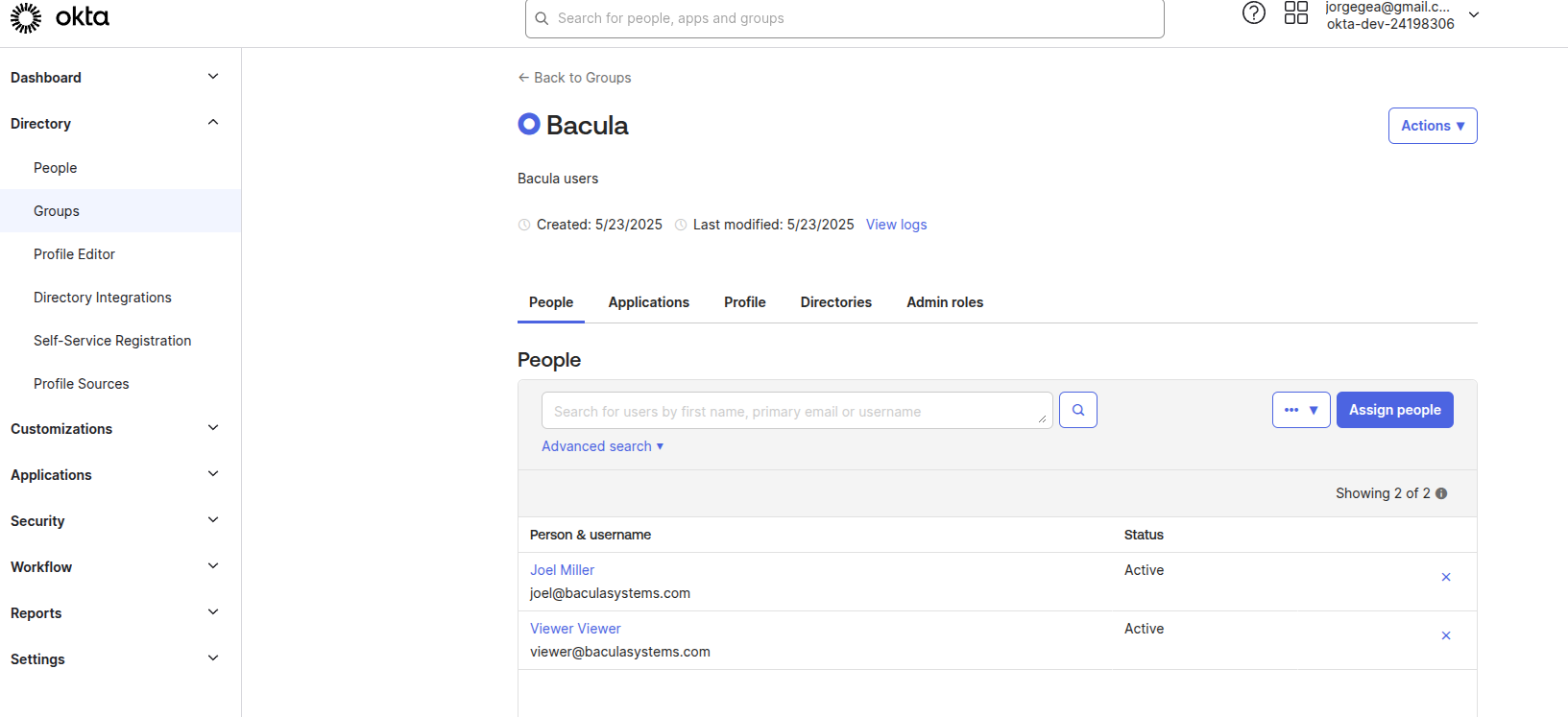
Associate users with the newly created BWeb application. While assignments can be done per-user, it is recommended to use a group.
Create a group (for example,
Bacula).Assign the group to the BWeb application.
Add users to the group.
Authorization Server
Configure the authorization server to include group information in access tokens.
Navigate to Security > API and open the
defaultauthorization server.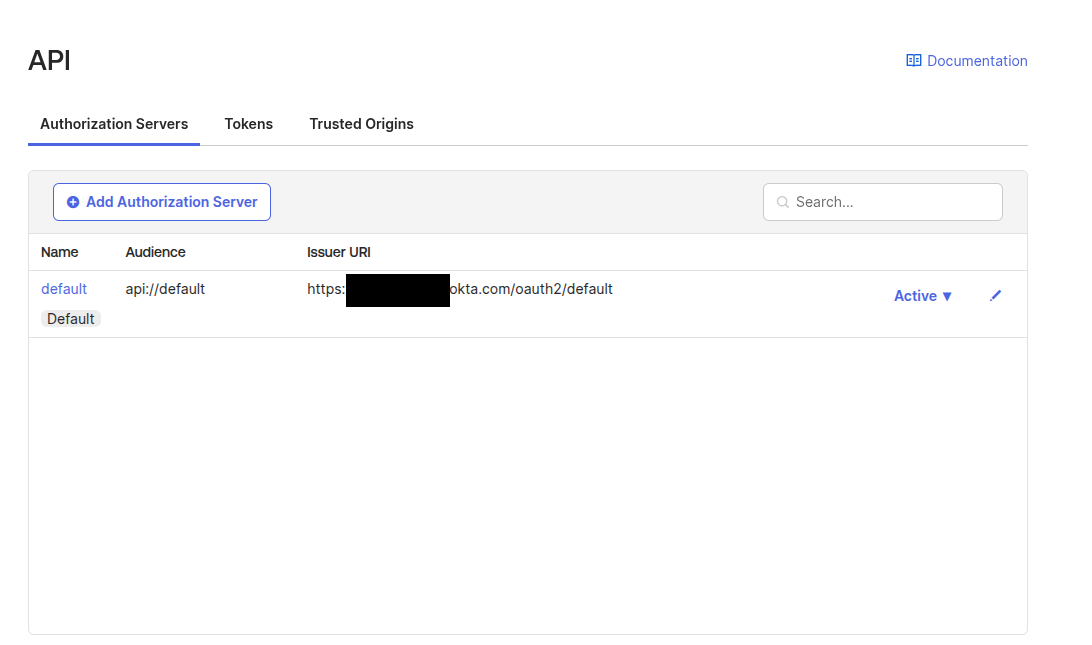
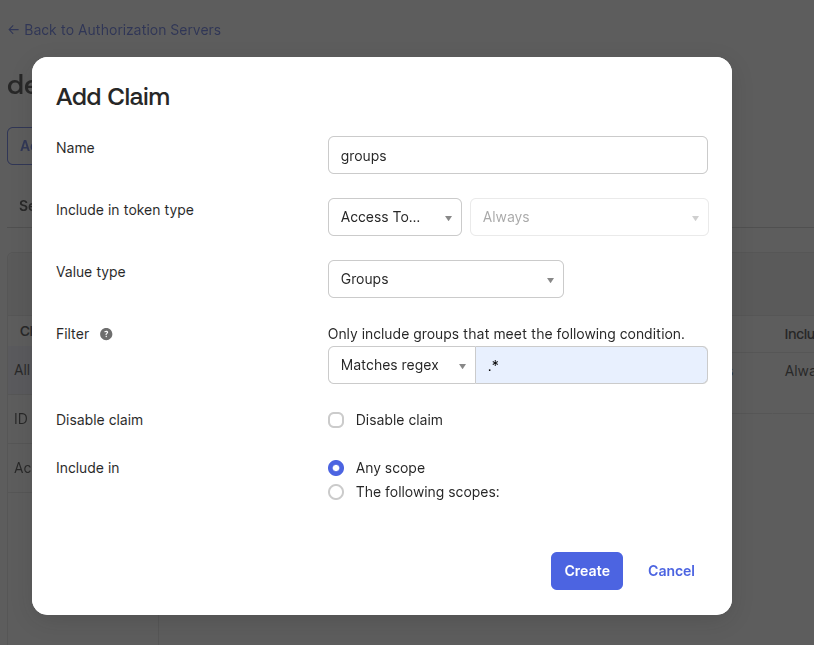
Ensure the groups claim is included in the access token. Open the Claims tab and click Add claim. Example values: Name
group, Include in token typeAccess Token | Always, FilterMatches regex | .*, and Include inAny Scope.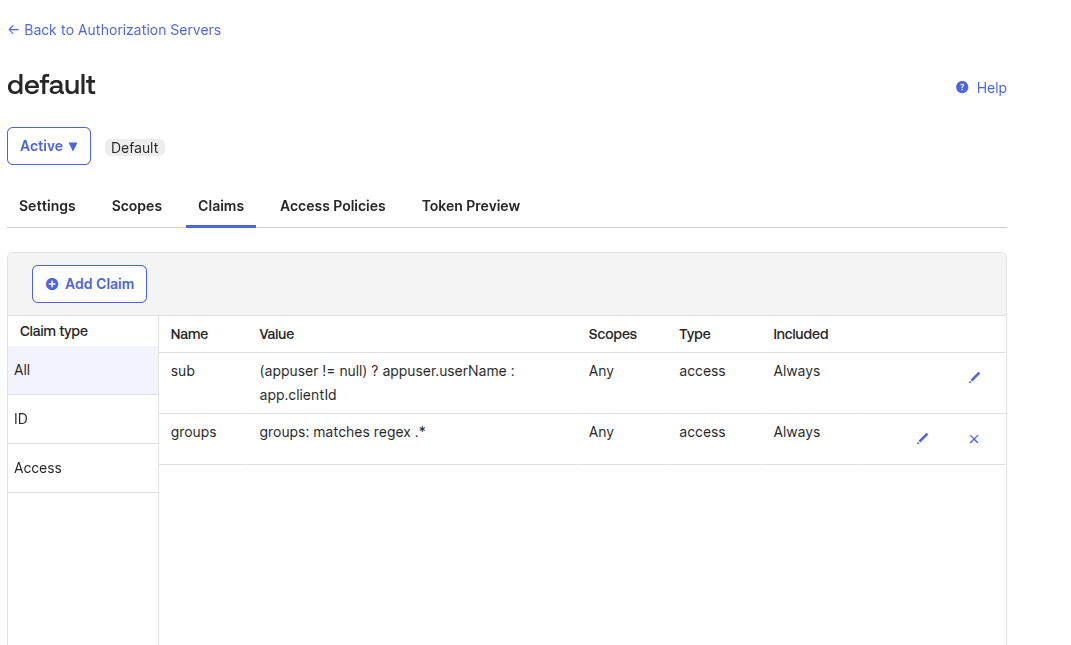
Verify there is an active policy allowing access to this authorization server.

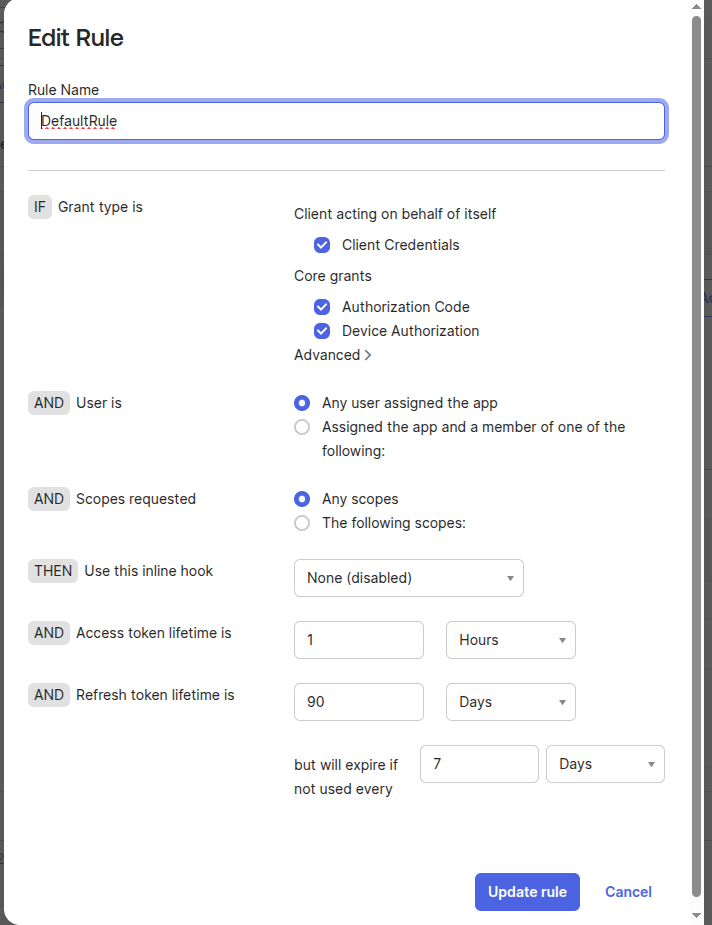
If no policy applies, create one using Add New Access Policy with values such as Name
Bacula Enterprise Access Policy, DescriptionAllow access from Bacula Enterprise application, and Assign toAll clients(or select the BWeb application).If required, add a rule and ensure Authorization Code and Any scopes are selected.
Use Token Preview to generate a test token and confirm the groups claim is included.

If the claim is missing, BWeb will not receive group information and role mapping will fail.
If your Okta tenant uses custom authorization servers or custom domains, verify that the issuer URL configured in BWeb points to the same server where the claim and policies were created.
Once the IdP configuration is complete, continue with Installation and Deployment.
See also
Previous articles:
Next articles:
Go back to: Authentication via OpenID Connect/OAuth 2.0 and Single Sign-On.